Plant5+
Picking · For pickers & shipping teams

Pick the right lot. Ship the right weight.

Pick sales orders by scan on handheld scanners and tablets, build shipment pallets, print shipping labels, and keep expiry, holds and catch weight under control. Picking runs in the browser, so there is nothing to install on the device.

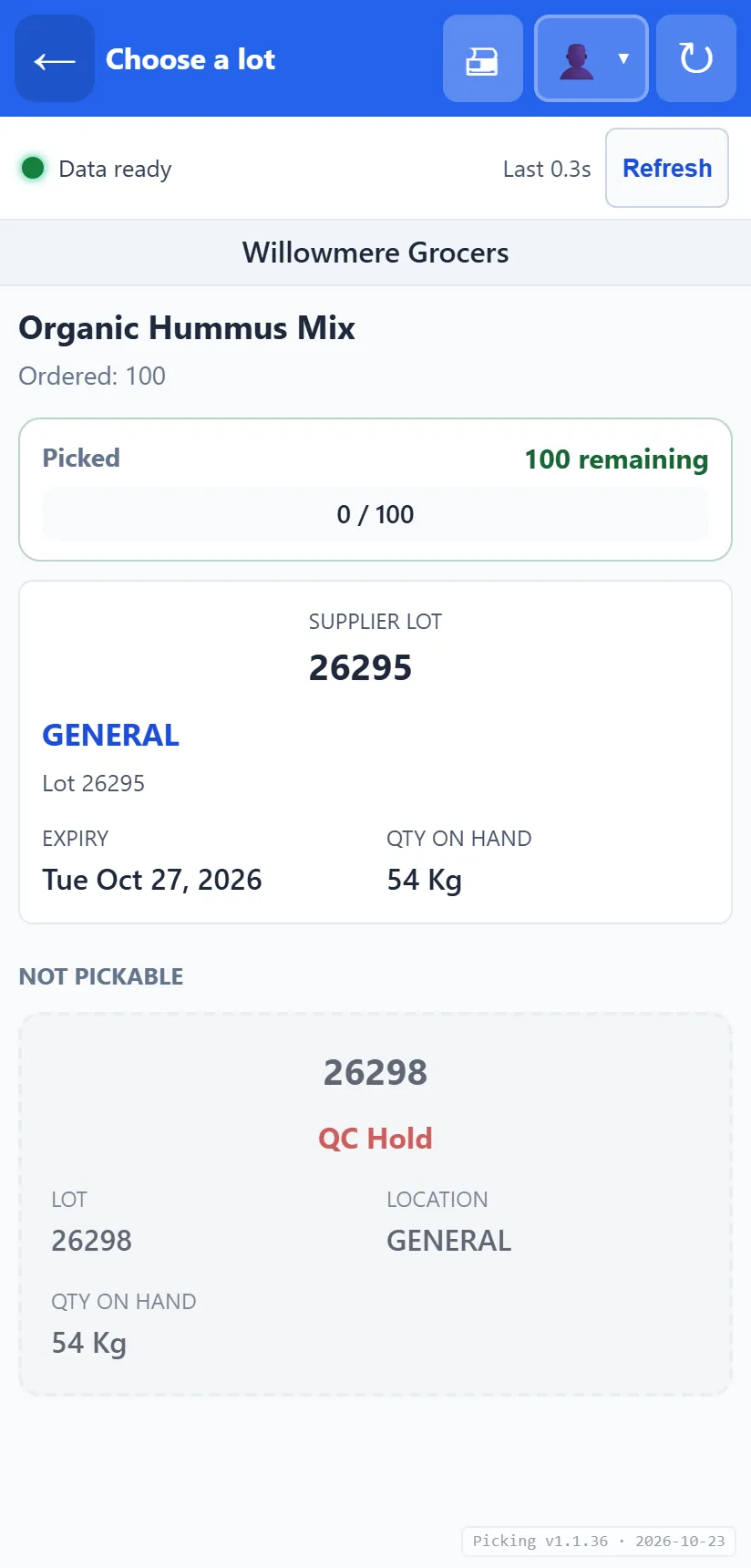
Picking on a handheld, choosing a lot for an order of 100 Organic Hummus Mix: lot 26295 with its expiry and quantity is pickable, and lot 26298 is greyed out under Not pickable, marked QC Hold
Choosing a lot: the pickable lot is listed first, and a lot on QC hold is greyed out under “Not pickable” with its reason. Demonstration data.

Pick the right lot

Pickers work sales orders on a handheld scanner or tablet. Each pick, by scan or by tapping a lot on the screen, is checked against the order before it is recorded.

  • Pick by scan, undo a pick, and record a short line with its reason.
  • First-expiring stock first: skipping an earlier-expiring lot needs a reason. Expired and held lots are shown greyed out with the reason and cannot be picked.
  • Over-picks are capped at 110% of the ordered quantity and need a supervisor’s approval. Every override is logged with its reason.
  • Case and pack picking, with a supervisor list of cases broken open and set aside.
  • Catch-weight picks: when case labels are required at pick, scan each GS1 case label and its net weight is recorded.

Build and ship pallets

Group picks onto shipment pallets and close them when they are built.

  • Build, close and reopen shipment pallets. When your GS1 company prefix is set, a GS1 SSCC is allocated when a pallet closes, the same way as in Control Center; it is shown on close, and the SSCC pallet label prints from Control Center.
  • A pallet holding catch-weight items prompts for its tare and gross weight when it closes.
  • Zebra shipping labels printed over the network. A device is linked to its printers only with a manager’s approval.
  • Wave picking: create a wave, add or remove orders, then start and complete it.

Handle the rest of the dock

The same app covers the other floor tasks that need a scanner in hand.

  • Complete customer returns.
  • Cycle counts by location.
  • Look up a lot’s traceability.
  • Works with Android handheld scanners and keyboard-wedge scanners, with vibration feedback on a scan.
  • Pickers sign in with a password or PIN.

How the products work together

  1. Control Center Plan jobs and manage operational records.
  2. WMS Receive materials and maintain stock records.
  3. Terminal Execute production and capture floor activity.
  4. Picking Pick, palletize and ship orders by scan.
  5. QB Sync Send supported accounting transactions to QuickBooks.

Quality, traceability and reporting support the operational workflow in Control Center.

See your workflow in a demo

Bring a real process. See how it fits.

For pickers, shipping staff and warehouse supervisors working on handheld scanners or tablets.

Pick a sales order by scan, see how expiry and held lots are handled, close a pallet and print the order’s shipping labels.

Picking runs in the browser and needs a Wi-Fi connection to your Plant5+ server; it does not work offline. Check your handhelds, Wi-Fi coverage and label printers during the demo. Production Terminal and WMS are the products that queue work while the network is down.

Opens your email app with a short demo brief. You can also email sales@plant5plus.com.

Explore the rest of the suite

CC · For managers, planners & quality teams

Control Center

See the plant. Plan the work. Follow through.

Explore Control Center →
QB Sync · For finance & operations

QuickBooks Sync

Run operations in Plant5+. Keep your books in QuickBooks.

Explore QuickBooks Sync →